Remote Storage
marimo makes it easy to work with cloud storage and remote filesystems by automatically detecting Obstore and fsspec storage connections in your notebook. From the Files panel, you can browse directories, search entries, copy URLs, and download files—all without leaving the editor.
Experimental
Remote storage is an experimental feature. Enable it in Settings > Experimental > Storage Inspector.
Supported libraries
marimo auto-discovers variables that are instances of:
| Library | Base class | Example stores |
|---|---|---|
| Obstore | obstore.store.ObjectStore |
S3Store, GCSStore, AzureStore, HTTPStore, LocalStore, MemoryStore |
| fsspec | fsspec.AbstractFileSystem |
S3FileSystem, GithubFileSystem, FTPFileSystem, DatabricksFileSystem, and many more |
Creating a storage connection
You can either create a storage connection using the UI or code.
1. Using the UI
From the Files panel in the sidebar, expand the Remote Storage section and click the Add remote storage button. The UI will guide you through entering your storage connection details.
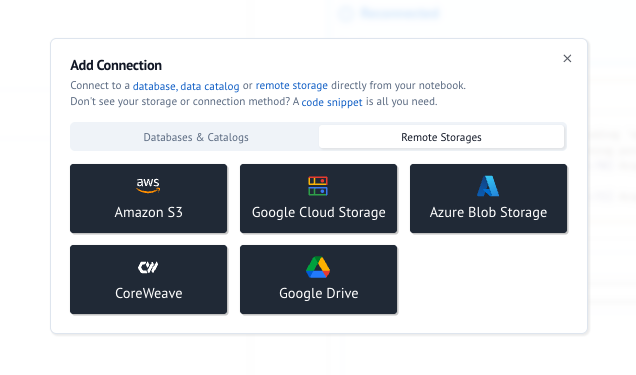
If you'd like to connect to a storage that isn't supported by the UI, you can use the code method below, or submit a feature request.
2. Using code
Obstore
from obstore.store import S3Store

store = S3Store.from_url(
    "s3://my-bucket",
    access_key_id="...",
    secret_access_key="...",
)
fsspec
from fsspec.implementations.github import GithubFileSystem

repo = GithubFileSystem(org="marimo-team", repo="marimo")
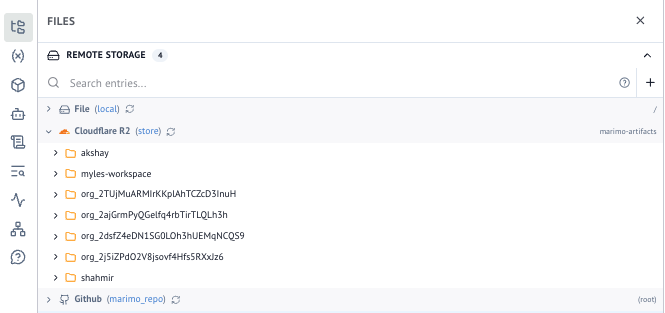
After the cell runs, the Remote Storage section will populate with your connection, its detected protocol, and root path.
Multiple connections
You can have multiple storage connections in the same notebook — each one appears as a separate namespace. The panel header shows the variable name so you can tell them apart.